
 hammad

The best software development tools depend on the work your team needs to get done. Some help write or review code; others expose local apps, build internal dashboards, or check browser flows. Nexaura Techs shares tool comparisons and tutorials to help you narrow the field. Here are 10 options, with the jobs each one fits.
1. Codex by OpenAI: For teams invested in the OpenAI ecosystem
Codex by OpenAI is a coding tool built for organizations that already rely on the OpenAI ecosystem. Its workflow spans the ChatGPT interface, command-line tools, and VS Code extensions, so teams can approach development through more than one entry point.
That range may suit a team that wants AI-assisted development to fit existing work habits. A developer might start in the ChatGPT interface, then use a CLI or VS Code extension as the task moves into a code project. The useful question is whether those entry points match how your team already works.
ChatGPT Plus starts at $20 per month. Treat that as a starting point for budgeting, then check which plan and workflow fit your organization before rolling it out.
Codex makes the most sense when the OpenAI stack is already part of your day-to-day work. If your team is choosing an assistant for a different ecosystem, compare the editor and cloud-focused options below.
2. Claude Code by Anthropic: For understanding large repositories
Claude Code by Anthropic is aimed at senior engineers working with large repositories or unfamiliar code structures. Its stated one-million-token context window is designed to help it map a project without requiring the developer to name every file by hand.
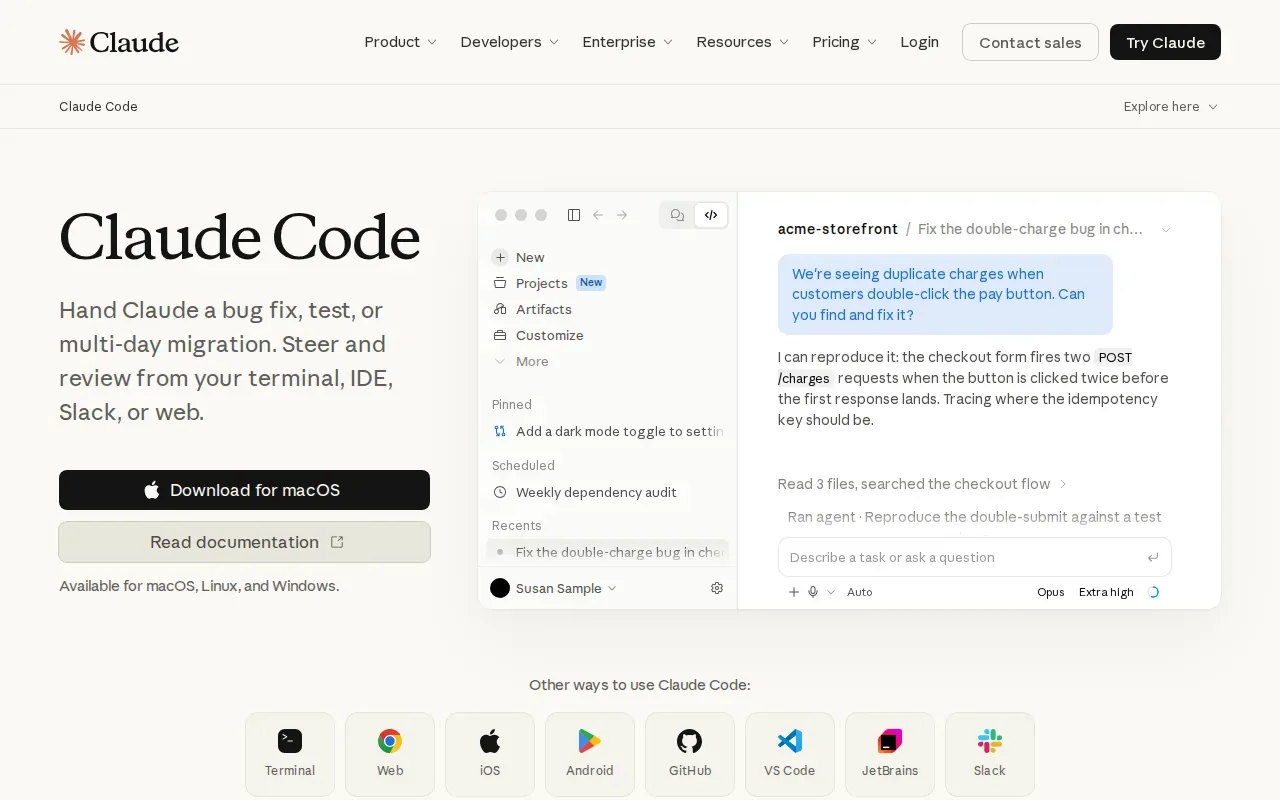
That can help when you’re tracing how a core module fits into the rest of a codebase. Instead of asking about one file in isolation, an engineer can use the broader project context when planning a refactor. The point is to reduce the amount of manual file selection needed to explain the task.
Claude Code has free minimal access, while a Claude Pro subscription starts at $17 per month. The best fit is a team that values repository-wide context and has engineers who can review proposed changes carefully.
For a small, contained task, that large context window may be more than you need. For an unfamiliar architecture, it gives a senior engineer a way to ask broader questions about how the project fits together.
3. Replit: For browser-based development with no local setup
Replit is a browser-based development environment, so you can start working without setting up a local development environment first. It’s aimed at new developers and people who don’t want to begin by configuring a machine.
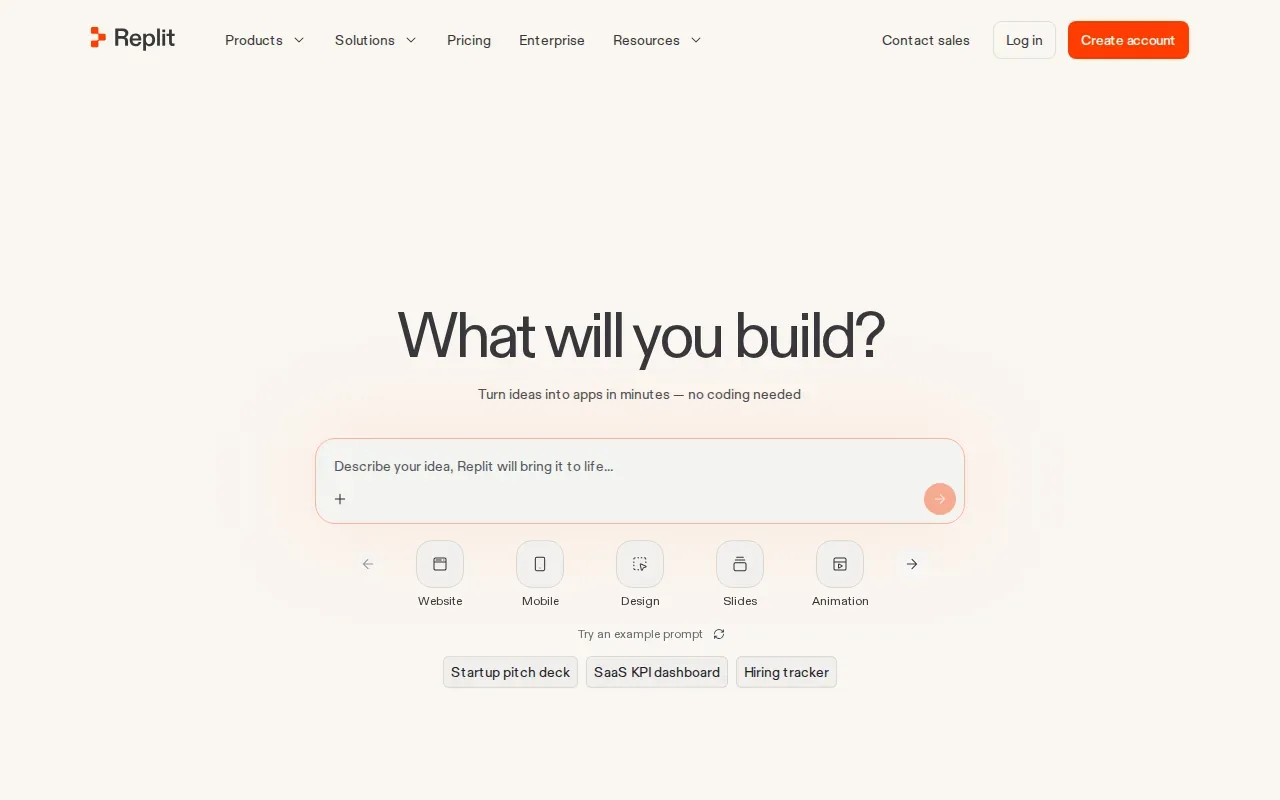
Its AI agent clarifies intent before generating code. That extra step is useful when a request needs more detail before it can turn into a coding task. For example, if you’re describing a small prototype, be clear about what the first version should do and what can wait.
A browser-based workspace can also help when you’re learning or sharing a project without first matching local setups. It won’t make every development workflow identical, but it removes the need to install a local environment before you get started.
4. GitHub Copilot: For AI assistance inside your existing editor
GitHub Copilot adds AI coding help inside editors developers already use. It supports VS Code, JetBrains, Visual Studio, and Vim, with inline completions and suggestions as you work.
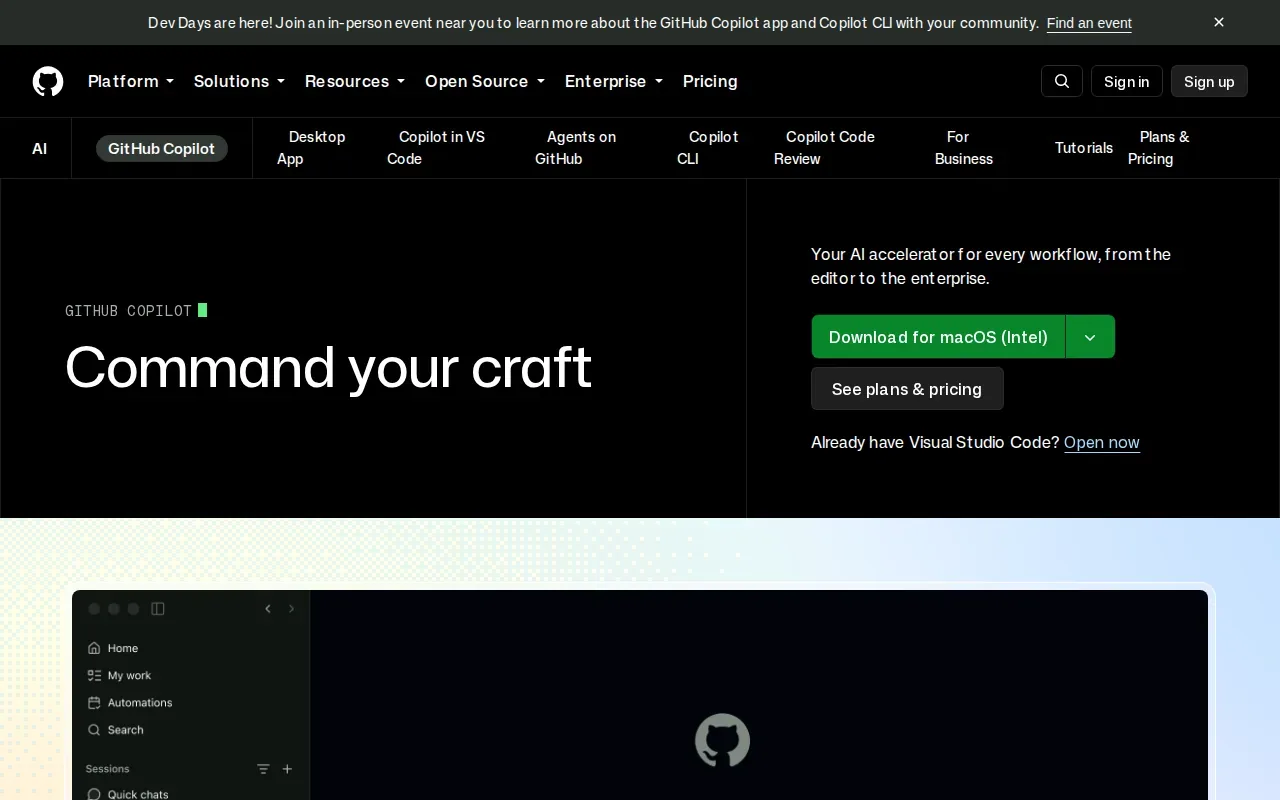
This makes it a fit for teams that want to add code suggestions without moving everyone to a new editor. Developers can keep their current setup and evaluate the assistant in the place where they write code. That lowers the workflow change required to test AI assistance.
Copilot’s free tier includes 2,000 completions and 50 requests each month. Those limits give an individual developer a way to try the workflow before deciding if it fits regular work.
Use suggestions as a starting point, not as a substitute for review. A completion still needs to match the project’s requirements and pass the same checks as code written by hand. Copilot is the straightforward pick when editor fit matters more than changing the team’s development setup.
5. Amazon Q Developer: For AWS-focused development
Amazon Q Developer is built for organizations creating cloud-native applications on Amazon Web Services. Its focus is assistance with AWS architectures, APIs, and cloud infrastructure work.
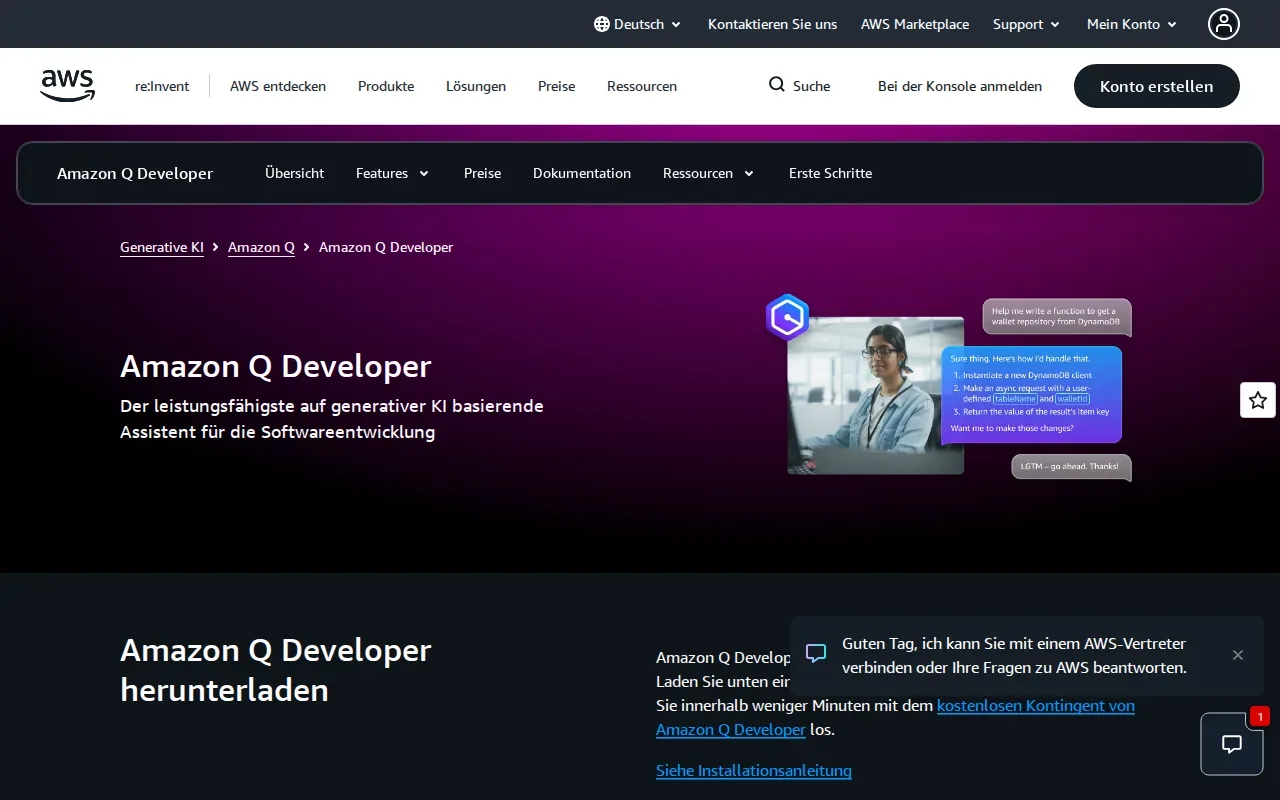
That focus matters when a development task depends on AWS-specific services or patterns. A team can assess it against work that already touches its cloud environment, rather than treating it as a general coding assistant for every project.
A free tier is available. The official pricing details also describe monthly limits for some features, so check the current plan terms against the work your team expects to do. Don’t assume a free tier covers every use case or level of team activity.
For teams centered on AWS, domain focus is the main reason to put Amazon Q Developer on the shortlist. If your work spans several cloud environments, compare how much of your daily development actually depends on AWS-specific support.
6. UI Bakery: For internal dashboards and admin panels
UI Bakery is a low-code platform for internal tools, dashboards, and customer portals. Its drag-and-drop UI building is aimed at teams that need an interface for an operations workflow without building every screen from scratch.
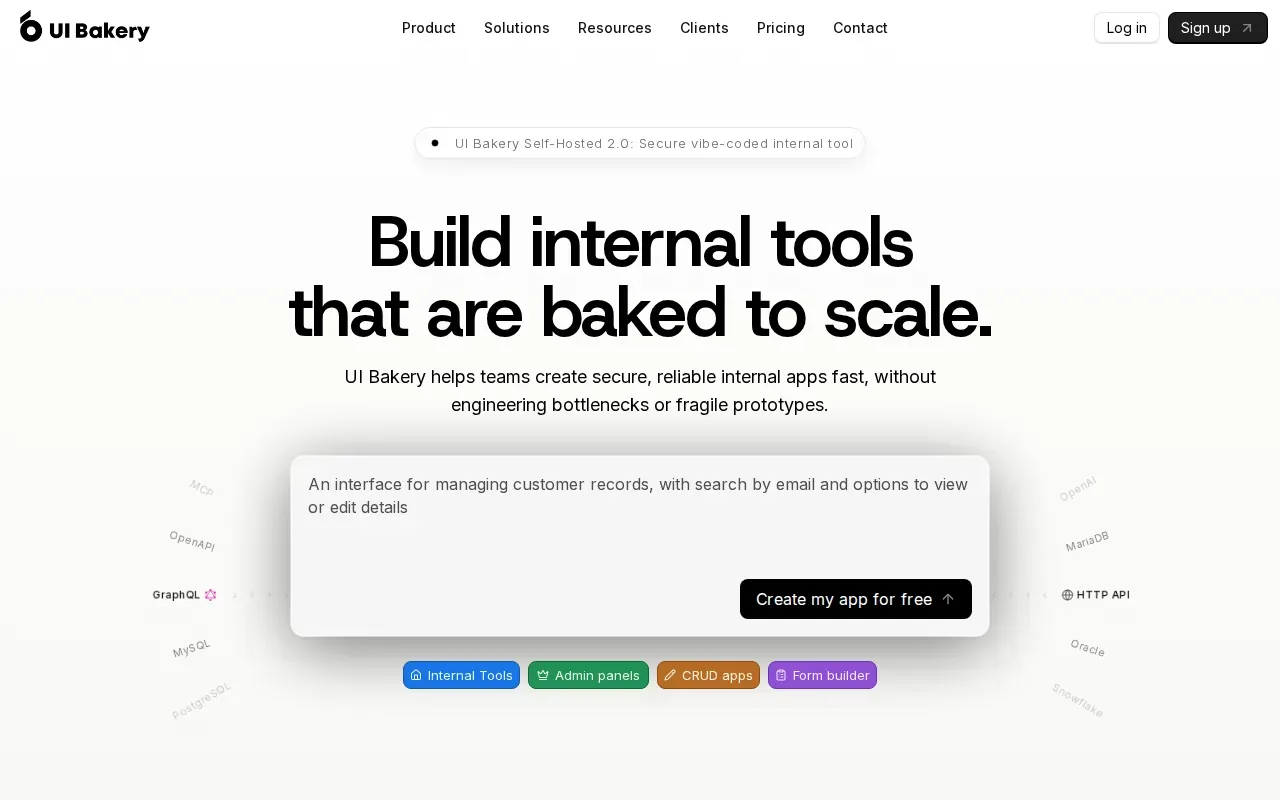
Think about a support team that needs an admin panel to review customer records. A visual builder can help the team assemble the screens, while engineers can focus on the parts of the workflow that need more care. The fit depends on whether the work is an internal interface rather than a custom product experience.
UI Bakery suits teams that need to put dashboards or admin panels in front of staff. It can also be considered for customer portals, according to the product description. For a task that mainly involves internal data views, a low-code approach may be a better starting point than hand-coding each screen.
UI Bakery is one option in the wider low-code category. Before committing, map the screens your staff actually need and check that the builder’s visual workflow fits the job. Nexaura Techs also covers developer tools and implementation topics for readers weighing these kinds of choices.
7. ngrok: For securely exposing local services
ngrok is developer infrastructure for routing and securing traffic to apps, APIs, and AI models. Its secure tunneling and network edge controls help developers expose local services when a workflow needs access beyond a developer’s machine.
That can help when a teammate or an integration needs to reach a service that’s running locally. Instead of treating local development and remote access as the same thing, a team can look at ngrok for the network path and controls around that access.
ngrok has native integrations with GitHub, GitLab, Slack, and Atlassian Bitbucket. Those connections may fit into an existing collaboration setup, especially when development work already touches one of those services.
It’s a fit for individual developers and teams that need to expose local services securely. Check the access path and controls needed for the specific app before using a tunnel as part of a workflow.
8. QA Wolf: For managed end-to-end test coverage
QA Wolf provides end-to-end testing as a service. Rather than asking your team to build and maintain the full test suite on its own, it handles test creation and maintenance as the product changes.
That model is aimed at fast-moving teams that need test coverage but have limited in-house capacity for maintaining tests. When a product changes often, upkeep can take time away from other engineering work. QA Wolf’s automation capabilities include updating tests as the product evolves.
Managed testing shifts some of that work outside the team. It’s worth considering if maintaining end-to-end coverage is a bottleneck. If engineers need to control every test detail directly, decide how the service model will fit their review and test-writing process before choosing it.
QA Wolf focuses on managed coverage. It isn’t the same choice as adopting a browser automation framework and assigning test upkeep to your own team.
9. Playwright by Microsoft: For browser automation and testing
Playwright by Microsoft is a browser automation framework for teams that want to automate browser tests. Its auto-waiting behavior is intended to reduce the need to manually manage timing around page actions.
For a team still using Selenium, Playwright is a candidate to assess as an alternative. Its API is cleaner than Selenium’s. That can make it worth testing against the browser flows your team already needs to cover.
Unlike a managed testing service, a framework gives your team a tool to use within its own testing workflow. That means the team needs to decide how tests are written and maintained. Auto-waiting is a useful feature to evaluate, but it doesn’t remove the need to check whether your test cases cover the right user paths.
Choose Playwright if browser automation is the need and your team wants to work with a framework. Consider QA Wolf instead when managed test creation and maintenance better match your team’s capacity.
10. GitHub: For source control, code review, and team workflows
GitHub gives teams a shared place for code hosting and collaboration. Pull requests support code review, while branches help developers manage proposed changes. GitHub Actions can automate CI workflows.
That makes GitHub a fit for open-source projects and multi-developer teams that value visibility. A change can move through a pull request so colleagues can review it before it merges. Actions can then support CI work tied to the repository.
GitHub’s starting price is $4. Its strengths sit around source control, code review, and team workflows. If the team needs detailed project or task management, plan for that separately; GitHub’s code-focused process may not cover every work-tracking need.
| Team need | GitHub’s role | What to plan for |
|---|---|---|
| Reviewing code changes | Pull-request reviews | Agree on who reviews and approves changes |
| Coordinating branches | Collaborative code hosting | Set a branch workflow that fits your team |
| Automating CI | GitHub Actions | Decide which checks should run in your workflow |
| Tracking broader project work | Code-first collaboration | Assess whether your team needs a separate task platform |
GitHub can anchor a team’s code review and source control process. It doesn’t replace every part of a development toolchain. Dedicated static analysis, observability, infrastructure-as-code, and project management tools address needs outside this shortlist, so check whether those gaps matter to your workflow.
Frequently asked questions
What are the best software development tools for a small team?
The best fit for a small team depends on its main bottleneck. GitHub can support source control and code review; GitHub Copilot adds suggestions inside several existing editors. Replit is a browser-based option when local setup is a barrier. Pick one tool that addresses an active need, then check how it fits the team’s current workflow.
Which software development tools are free to start?
Several options in this shortlist have free access or a free tier. GitHub Copilot includes a free tier with monthly limits, and Amazon Q Developer has a free tier. Claude Code has free minimal access. Check each provider’s current terms and limits before planning a team rollout.
What’s the difference between Playwright and QA Wolf?
Playwright is a browser automation framework that a team can use to build browser tests. QA Wolf is a managed end-to-end testing service that handles test creation and maintenance. The main choice is who should own the test work: your engineers using a framework, or a service handling more of the process.
Do software development teams need separate project management tools?
Some teams do. GitHub supports code review, branch work, and CI through Actions, but a code-focused workflow may not cover detailed task tracking. Look at how your team plans work and tracks ownership. If code discussions and task status need different views, assess whether a separate project platform would help.
How should I compare software development tools?
Start with the job you need done, then compare each option against your current workflow. Check integrations, setup needs, pricing, and who will maintain the tool. For testing, decide whether you want a framework or managed service. For AI coding help, check whether the tool fits your editor or cloud environment.
Conclusion
Choose the tool that clears your team’s current bottleneck, not the one with the longest feature list. Start with one small workflow and test it with the people who’ll use it. For ongoing comparisons and tutorials, visit Nexaura Technologies and explore Nexaura Techs’ free weekly newsletter.